

 https://tutt.world

Boxing Day 2025
Boxing Day 2025 unveils refined traditions, luxe sales, and calm-after-storm reflections—your guide to elegant deals, cultural rituals, and savvy savings.
Read now
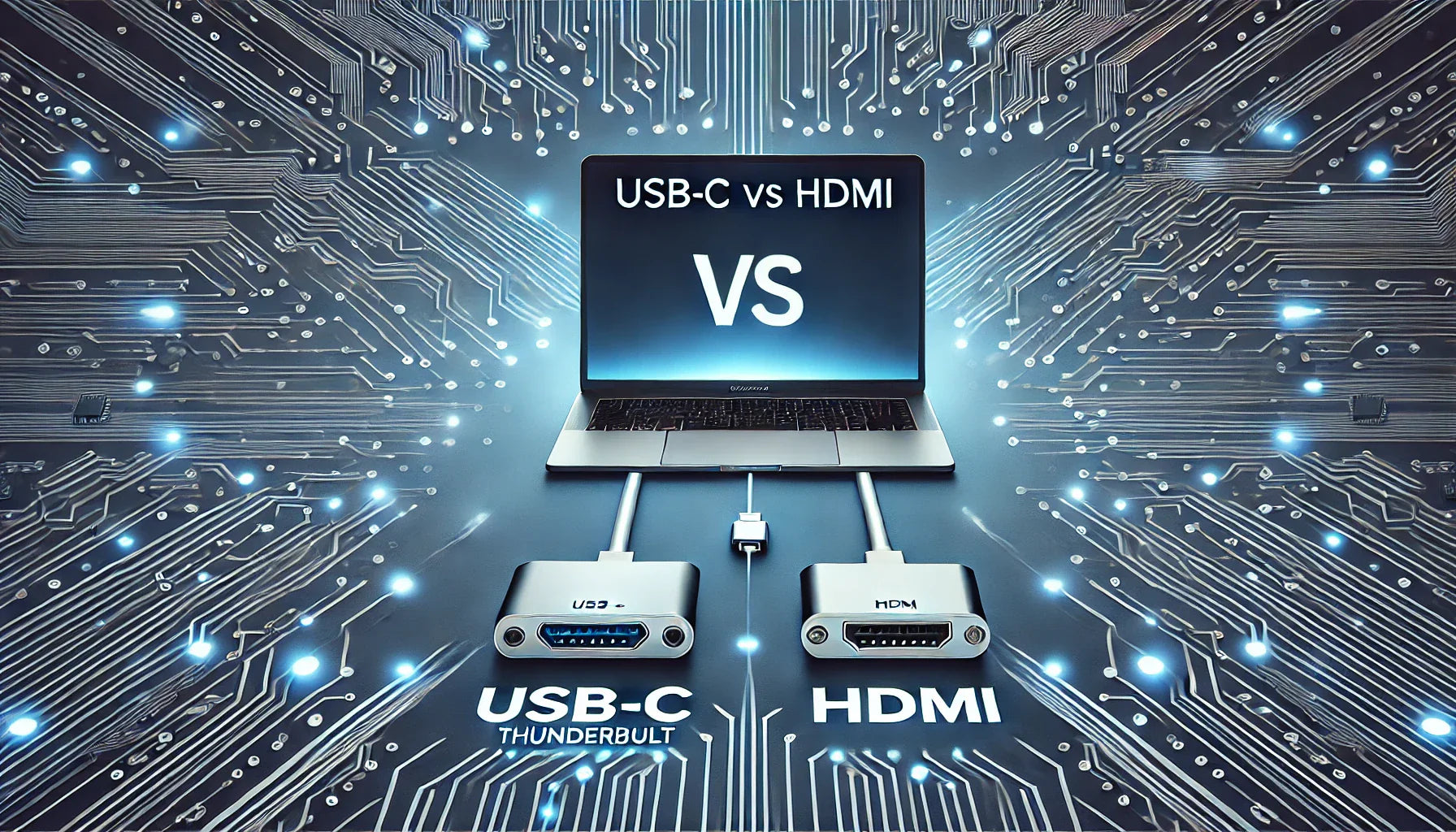
In today’s evolving digital workspace, connecting your laptop to an external screen has gone from a luxury to a necessity — whether you're working remotely, gaming, multitasking, or attending virtual meetings. At TUTT Portable Monitor Collection – Dual, Triple & Quad Screens Canada, we specialize in portable monitor solutions that meet all these needs — from triple-screen extenders like the S788 to dual and single screen models.
Understanding the differences between HDMI and USB‑C Full-Feature (Alt Mode or Thunderbolt) is key to choosing the right screen extender for your device — especially for modern laptops and MacBooks. Below, we break it down in simple terms so you can confidently pick the right setup for your workflow or entertainment needs.
| Feature | HDMI | USB‑C Full‑Feature |
|---|---|---|
| Primary Use | Video + Audio only | Video + Audio + Power + Data |
| Cable Type | Standard HDMI cable (not reversible) | USB‑C (reversible, modern) |
| Power Delivery | Not supported | Supported (up to 100W) |
| USB Hub Function | No | Yes (keyboard, mouse, USB drives) |
| Ideal For | Consoles, TVs, legacy PCs | Modern laptops, docking setups, MacBooks |
Selecting the right portable monitor starts with understanding your primary device’s ports and software restrictions. For example, if you own a MacBook with an M4 chip, it supports Thunderbolt / Full‑Feature USB‑C, pointing you toward our portable screen extender models that offer single‑cable simplicity.
Next, consider whether you can install external drivers. If your laptop is a corporate or government‑issued machine where driver installation is locked down, choose a model that supports **plug‑and‑play via HDMI or native USB‑C** without requiring additional software.
In such scenarios, we recommend looking at our range of models that support both HDMI and USB‑C inputs. If you’re using a laptop with **both Thunderbolt USB‑C and HDMI**, like many Windows machines, you’re already compatible with virtually all our monitors. Your decision then depends on: - Do you prefer **one‑cable docking**? - Do you plan to use **dual or triple screen extenders**? - Are you OK with driver installation or not?
For example, our TUTT S788 Triple Screen Extender offers a full **16:10 triple‑display setup** via one USB‑C cable — *but it does require a driver install*. If you prefer zero‑install simplicity, opt for models with native HDMI or simpler USB‑C inputs.
To dive deeper into how to select connections, monitor inputs, cable compatibility and more, you can consult our comprehensive guide: Portable Monitor Complete Guide 2025. It’s designed to help you understand **USB‑C vs HDMI**, monitor port types, and how they apply to your workflow.
Still unsure? Our team is ready to help. Visit our Technical Support Request page for personalized monitoring advice.
At TUTT, we offer a wide selection of dual, triple, and single portable monitors optimized for both HDMI and USB‑C connections. Some models support both interfaces (hybrid), while others like our USB‑C-only designs are optimized for single-cable efficiency. For MacBook users, USB‑C is the preferred solution.
Also explore: Men's Smartwatches | Women's Smartwatches | TUTT Best Buy Storefront


The smart display category is rapidly evolving, driven by AI, IoT integration, and demand for smart-home control. Learn how TUTT Canada can lead in this growing sector, offering personalized, secure, and future-proof display solutions across residential and commercial markets
{"one"=>"Select 2 or 3 items to compare", "other"=>"{{ count }} of 3 items selected"}
Leave a comment